Portrait Editing: Remove Eye-glasses from a Photo


Ingrese su email para suscribirse a la lista de AKVIS.
 
 
  Productos     Descargar     Tienda online     Tutorial     Apoyo técnico     Compañia      Área de clientes
en  fr  de  es  pt  it  jp  ru    
 

Tutorial: AKVIS MultiBrush

Portrait Editing


Esta información está disponible solamente en inglés. La version en español aparecerá pronto.

AKVIS MultiBrush helps you to retouch photos and enhance portraits. It removes unwanted objects from digital pictures.

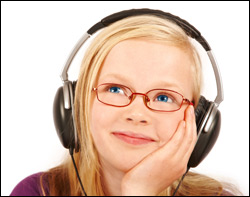
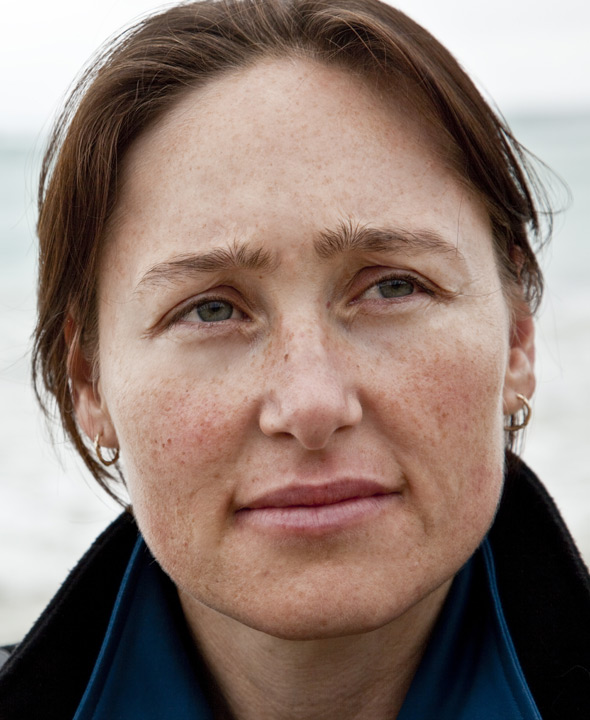
We will try to see how this girl looks without the eye glasses.

    Original image Result
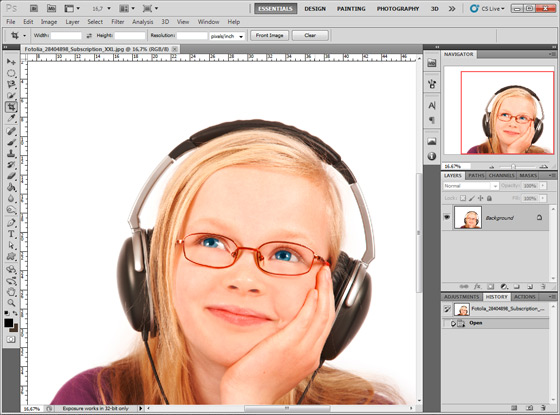
  • Step 1. Open the photo in your photo editor. You can also open the photo in the standalone version of Multibrush and achieve the same results as in this example.
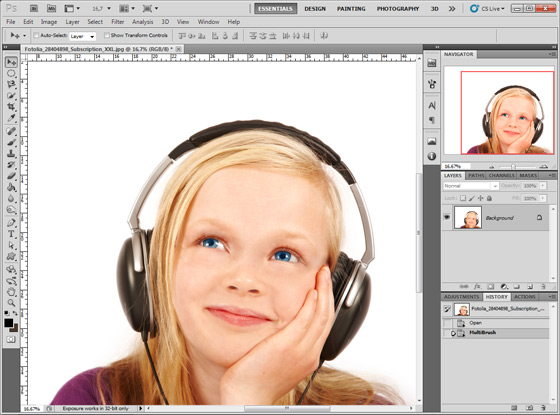
    A girl wearing eye glasses
  • Step 2. Select the plugin AKVIS MultiBrush. In Adobe Photoshop, you should select the menu item Filter -> AKVIS -> MultiBrush, in Corel (Jasc) Paint Shop Pro - the menu item Effects -> Plugins -> AKVIS -> MultiBrush; and in Corel Photo-Paint - the menu item Effects -> AKVIS -> MultiBrush.
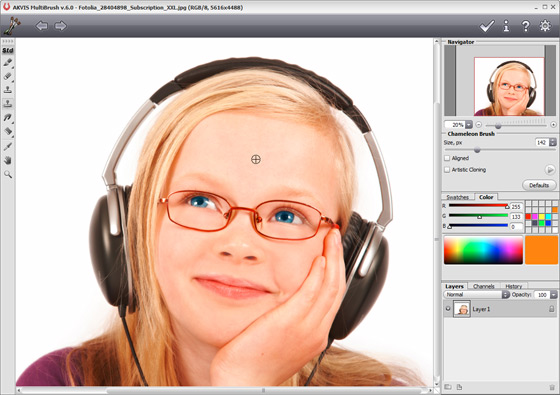
  • Step 3. Select the Chameleon Brush tool (in version 1-3 it was the Stamp tool) from the Toolbar pressing the button and set a small size of the brush.
  • Step 4. Deactivate the check box Aligned so that every time you apply the brush the pattern is taken from one and the same starting point.
  • Step 5. Press the Alt-key (Option in Macintosh) and use the left mouse button to sample the girl's forehead, it will be the source area.
    Set the source area
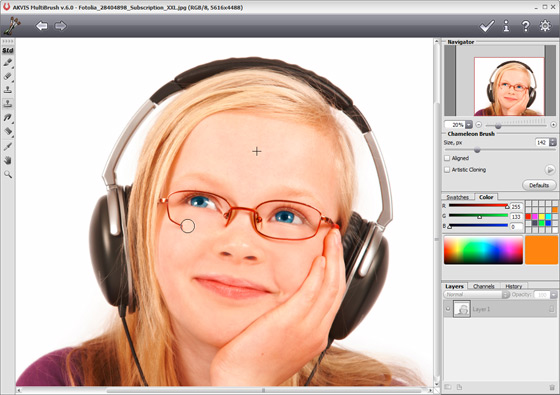
  • Step 6. Apply the brush to the frame of the eye glasses with strokes.
    Removing eye glasses
  • Step 7. Press the button in the Control Panel to apply the result of the retouching and close the plugin window.
    Girl without glasses

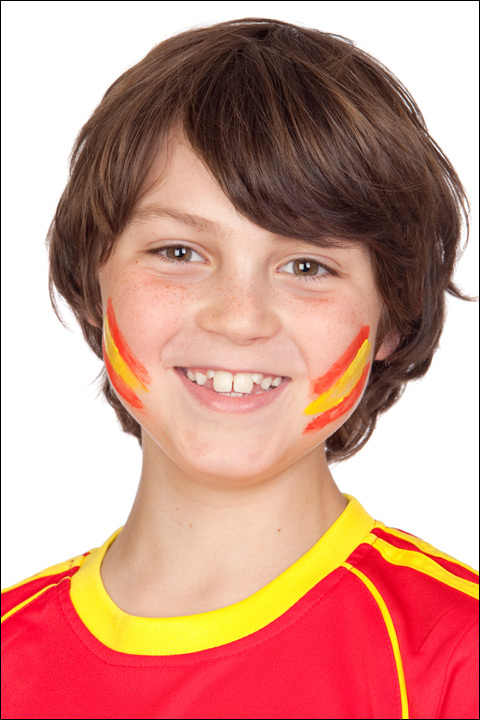
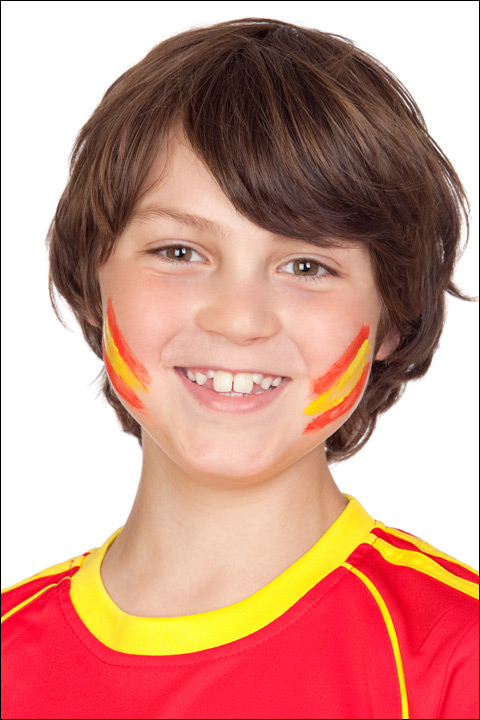
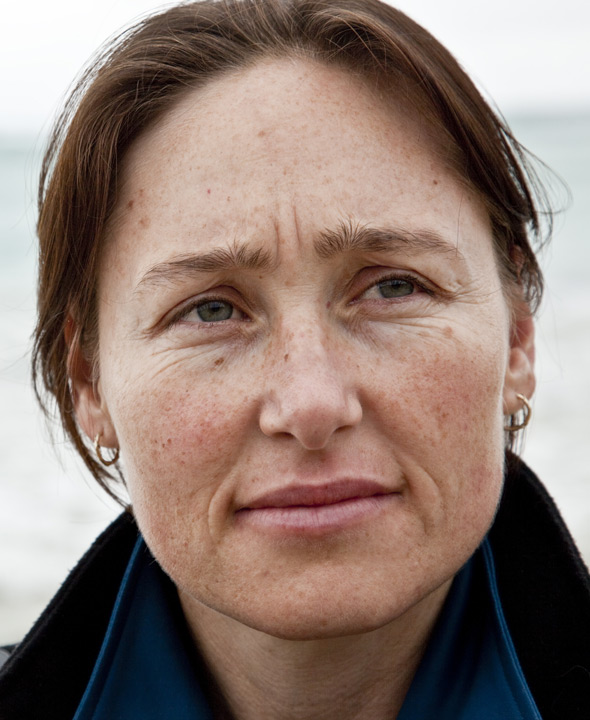
You can also use this method to remove small defects, such as freckles, scars, birthmarks and even wrinkles.

    Boy with freckles ...and without freckles

    Girl with scars ...and without scars

    Wrinkled face No wrinkles

 
Cómo funciona Cómo funciona
   — Área de trabajo — Área de trabajo
   — Utilizar el programa — Utilizar el programa
   — Crear una nueva imagen — Crear una nueva imagen
   — Opciones — Opciones
   — Teclas de atajo — Teclas de atajo
Paletas Paletas
   — Barra de herramientas — Barra de herramientas
   — Color — Color
   — Muestras — Muestras
   — Historia — Historia
   — Capas — Capas
   — Canales — Canales
Pinceles standard Pinceles standard
   — Pincel de color — Pincel de color
   — Lápiz de color — Lápiz de color
   — Aerosol — Aerosol
   — Borrador — Borrador
   — Pincel histórico — Pincel histórico
   — Támpon de clonar — Támpon de clonar
   — Pincel Camaleón — Pincel Camaleón
   — Desenfocar — Desenfocar
   — Enfocar — Enfocar
   — Dedo — Dedo
   — Aclarar — Aclarar
   — Oscurecer — Oscurecer
   — Saturación — Saturación
Pinceles artísticos Pinceles artísticos
   — Pincel al óleo — Pincel al óleo
   — Rodillo — Rodillo
   — Rotulador — Rotulador
   — Barra de tiza — Barra de tiza
   — Lápiz artístico — Lápiz artístico
   — Aerosol artístico — Aerosol artístico
   — Borrador artístico — Borrador artístico
Herramientas Herramientas
   — Cuentagotas — Cuentagotas
   — Mano — Mano
   — Zoom — Zoom
Ejemplos Ejemplos
   — El tercero está de más — El tercero está de más


volver arriba


   Política de privacidad | Mapa Web | Buscar    
   Contáctenos | Twitter | Facebook | YouTube Channel    
| English  |Français  |Deutsch  | Español  |Português  |Italiano  |日本語  |Pусский  | © 2004-2012 AKVIS. Todos los derechos reservados.