Juguetes en el césped
El autor de este tutorial es Roman Lunin.
Muchos de nosotros recordamos el juguete favorito de nuestra infancia. Queríamos tener juguetes que fueran diferentes a los otros. Utilizando AKVIS Decorator, podemos hacer que dicho sueño se vuelva realidad... al menos en una fotografía.
En este tutorial cambiaremos el color y la textura de una almohada para que se vea como césped.
- Paso 1. Abra una fotografía en AKVIS Decorator.
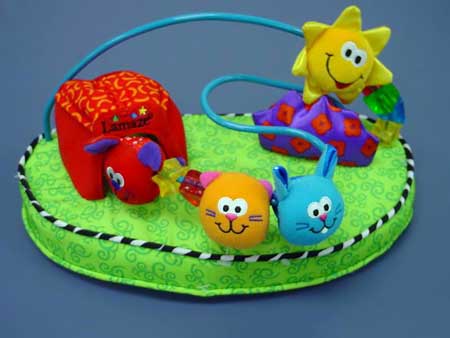
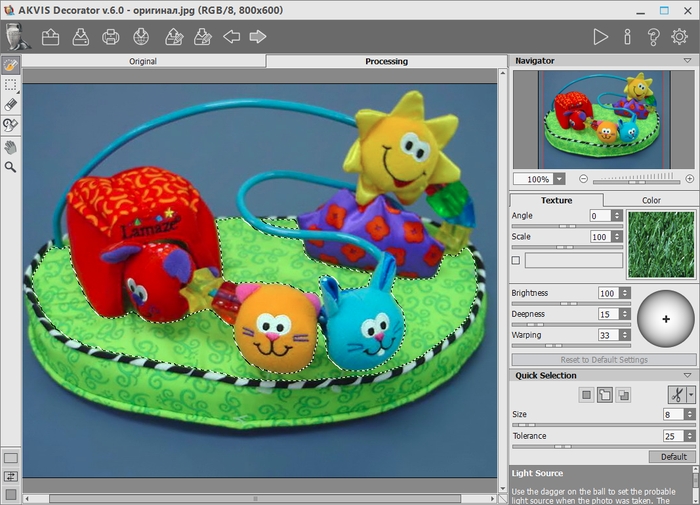
- Paso 2. Seleccione la parte superior de la almohada. Para ello puede elegir cualquier herramienta de selección. La zona seleccionada deberá quedar como se ve a continuación:
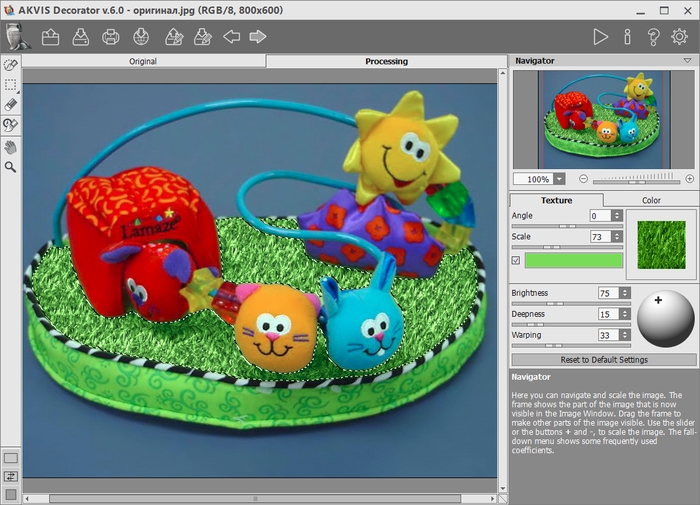
- Paso 3. Elija una textura apropiada de la Biblioteca de texturas. Para abrir la Biblioteca, haga clic doble con el botón izquierdo del ratón sobre el cuadro textura. En la carpeta Naturaleza, haga clic doble con el botón izquierdo del ratón sobre la textura que usted desee.
Si no le agrada el color de la textura, lo puede cambiar. Para cambiar el color de una textura, primero debe activar la casilla Color; luego haga clic sobre la placa de color y elija un color del cuadro de diálogo Seleccionar color. Además, es posible escoger un color de la imagen original. Para hacerlo, haga clic con el botón izquierdo del ratón sobre el sector con el color que desee de la imagen original, manteniendo presionada la tecla Ctrl (⌘ en Mac).
Si lo desea, puede cambiar otros parámetros. El autor cambió los valores de Escala y Brillo.
- Paso 4. Presione el botón
 para aplicar la textura al objeto seleccionado. El resultado se mostrará en la pestaña Tratamiento.
- Paso 5. Presione el botón
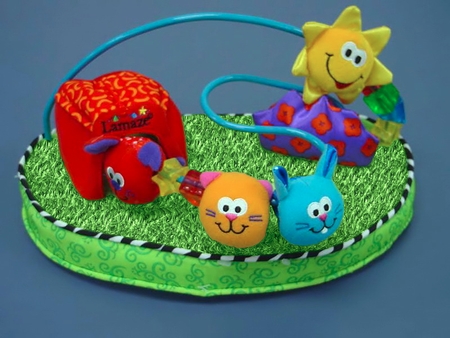
 para guardar el resultado. Ahora las pequeñas criaturas se encuentran en el césped.
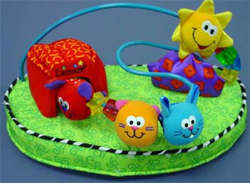 |
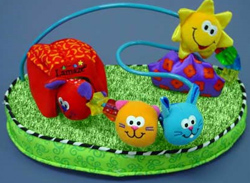 |
| Imagen original | Resultado |
Decorator v. 9.1 - Prueba gratuita de 10 días
