V.1-3: Complex Mode
The Complex mode is especially good for selection of complex objects: glass articles, objects that have the same color range as the background (trees, dishware, soap bubbles...).
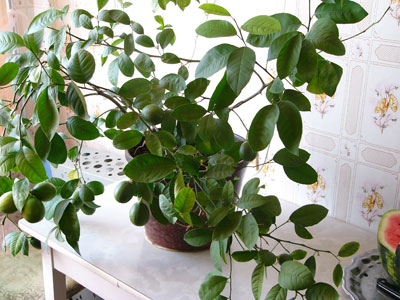
Original Photo
Attention! This is a manual mode, therefore the Run  button is disabled.
- Step 1. Use the check-box Only in green zone to define the operation mode. When the check-box is enabled, only the areas within the earlier drawn green zone will be edited. When the check-box is disabled, the changes will influence all points of the image.
- Step 2.
Edit the image manually using the following tools:
- Drop Colors
 .
The colors chosen with this tool are listed in the Drop Colors
field. To select a color, click on the corresponding image point with
the left-button of the mouse.
.
The colors chosen with this tool are listed in the Drop Colors
field. To select a color, click on the corresponding image point with
the left-button of the mouse.
- Keep Colors
 .
The colors chosen with this eyedropper are listed in the Keep
Colors field. To select a color, click on the corresponding
image point with the left-button of the mouse.
.
The colors chosen with this eyedropper are listed in the Keep
Colors field. To select a color, click on the corresponding
image point with the left-button of the mouse.
Use the hot-key I on the keyboard to activate these tools and to switch between them.
By default, the tools sample an average color from an area of 3x3 px around the eyedropper's tip. To change the number of pixels in the sample area, use the following hot keys: the Alt-key with a mouse click reduces the area to one pixel, the Shift-key with a mouse click enlarges the area to 5x5 px.
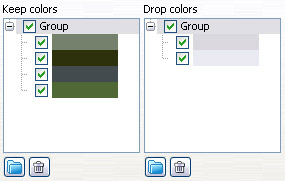
The Drop Colors and Keep Colors fields are found on the Settings panel. They contain color sets chosen by the user. Add colors using the above-mentioned tools. It is possible to group colors. To create a new group, click on the button
 . To delete
a color from the list, select this color with a left-click of the mouse
and press the button
. To delete
a color from the list, select this color with a left-click of the mouse
and press the button  .
The green check mark defines the colors/groups of colors that will be taken
into consideration when calculating the result.
.
The green check mark defines the colors/groups of colors that will be taken
into consideration when calculating the result.
- Drop Colors
-
Step 3. Process the image using the Magic Brush tool
 .
.
The Magic Brush keeps the points having the colors listed in the Keep Colors field and deletes the points having the colors listed in the Drop Colors field. Other colors are kept or deleted according to their closeness to one or another color set.
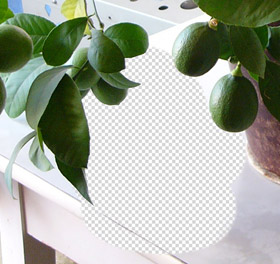
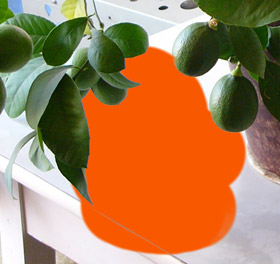
On trasparent background On color background Magic Brush has the following parameters:
There are three check-boxes that define the operation mode of Magic Brush:
Calculate. When the check-box is enabled, the brush removes the points having the same colors as those listed in the Drop Colors field and colors close to them, and it restores the points having the same colors as those listed in the Keep Colors field and colors close to them.
Repair. In this mode the Magic Brush restores only the points having the same colors as listed in the Keep Colors field.
Clean. In this mode the Magic Brush deletes only the points having the same colors as listed in the Drop Colors field.
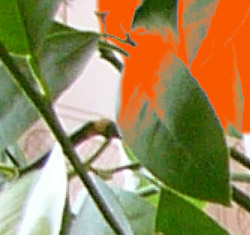
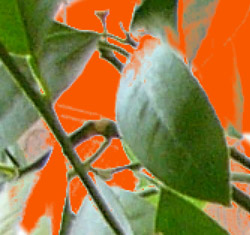
Before application of the tool Check-box "Calculate" enabled 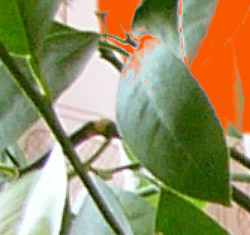
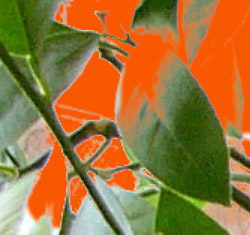
Check-box "Repair" enabled Check-box "Clean" enabled Brush. This parameter sets the inner diameter of the brush, that is the zone where the chosen effect is applied to completely.
Edge. This parameter sets the outer diameter of the brush, that is the zone where the chosen effect is applied partially.
Check-box Foreground Recovery. In most cases the objects on a photo are not evenly lighted, therefore the cutout object can have shades and colors reflected from the nearby objects. Such color shades can be absolutely inappropriate on a new background: for example, hair having a blue cast from the sky or a green shade from the trees, shadows of objects on clothes... The check-box Foreground Recovery helps to get rid of these unwanted color shades. Just select a color with a click on the color plate (use the Standard Color Selection Dialog or use the eyedropper tool to pick a color from the image); or set transparence (with a right click) - in this way you select a color from the Keep Colors list. Process the image with the Magic Brush - the colors will get the chosen shade. The Strength parameter defines the influence of the applied color. The higher the value of the parameter, the more the colors are subject to change.
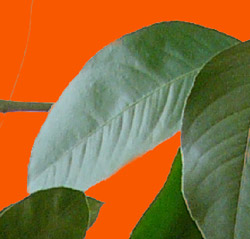
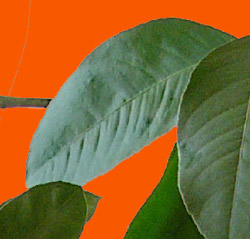
Check-box "Foreground Recovery" is disabled Check-box "Foreground Recovery" is enabled
green color selectedBrush Sensitivity parameters:
General. This parameter influences the amount of details recovered in difficult zones. The higher the value of the parameter, the more semitransparent details are visible.
Sensitivity to Keep Colors. The higher the value of this parameter, the wider the range of the colors kept on the image.
Sensitivity to Drop Colors. The higher the value of this parameter, the wider the range of deleted colors.
- Step 4. Repeat steps 2 and 3 changing color sets until the whole image is processed.
- Step 5. Touch up the result using the following tools :
- Restore Brush
 .
This tool restores the area to its original state. Use the hot-key Y
to activate this tool from the keyboard.
.
This tool restores the area to its original state. Use the hot-key Y
to activate this tool from the keyboard.
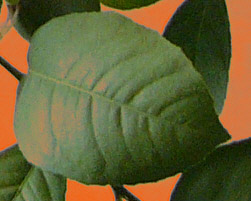
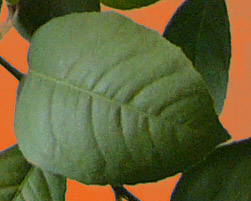
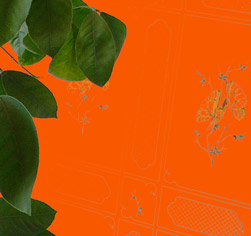
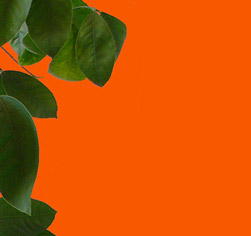
Before application of the tool After application of the tool - Eraser
 .
This tool erases the areas to which it is applied. Use the hot-key E
to activate this tool from the keyboard.
.
This tool erases the areas to which it is applied. Use the hot-key E
to activate this tool from the keyboard.
Before application of the tool After application of the tool - Blur
 .
This tool creates a blur effect by reducing the color contrast between
adjacent pixels. The tool is adjusted with the Blurring
parameter. The higher the value of the parameter, the stronger the
effect is. At Blurring= 1 there is no blurring at all. Use the hot-key
R to activate this tool from the keyboard.
.
This tool creates a blur effect by reducing the color contrast between
adjacent pixels. The tool is adjusted with the Blurring
parameter. The higher the value of the parameter, the stronger the
effect is. At Blurring= 1 there is no blurring at all. Use the hot-key
R to activate this tool from the keyboard.
- Restore Brush
- Step 6. Click on
 to apply
the changes and quit the plugin.
to apply
the changes and quit the plugin.
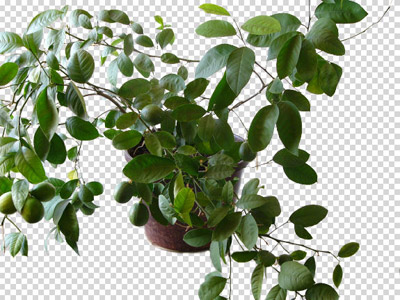
Result
SmartMask v. 12.0 - Free 10-day Trial

