Catch the Star
The example was made in the old version of SmartMask. Now, you can achieve this effect more easily with the new AI-based tools.
The author of this tutorial is Constantine, from Russia.
Attention! The example was made in the old version of AKVIS SmartMask.
You can do the same even easier using the current version.
Everyone, expecially at a young age, wants to be close to their idol, whether it is a famous actor, sportsman, or other public figure. With AKVIS SmartMask it's possible to make this dream a reality.
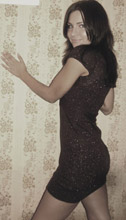
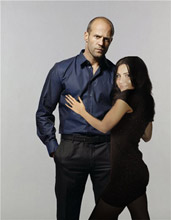
Adobe Photoshop was used for this tutorial, but the same result can be obtained from any graphics editor that supports the AKVIS SmartMask plug-in.
-
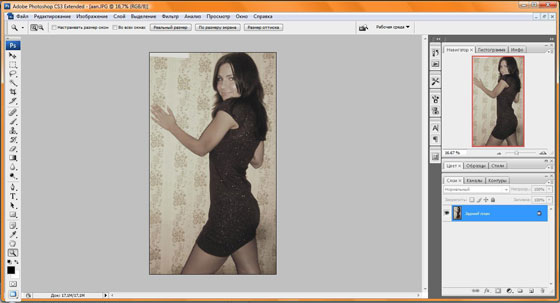
Step 1. Open the original image in Adobe Photoshop.
-
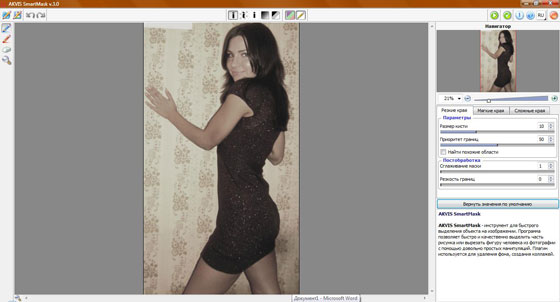
Step 2. Create a new layer with the command Layer -> Duplicate Layer. Call the Smartmask plug-in by selecting Filter -> AKVIS -> SmartMask from the graphic editor's filter menu. By default the program starts in Sharp mode. Begin working in this mode.
-
Step 3. Use the blue pencil
 to draw within the borders of the girl. This part will be used for the collage.
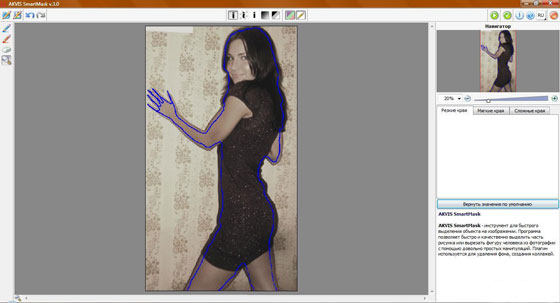
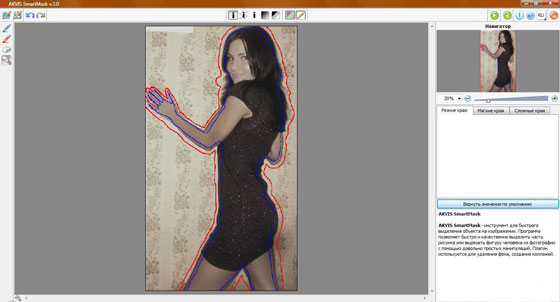
Then use the red pencil
 to draw outside the girl. This area will be deleted.
-
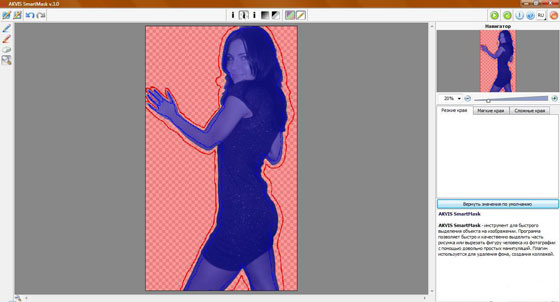
Step 4. Start processing the image by pressing
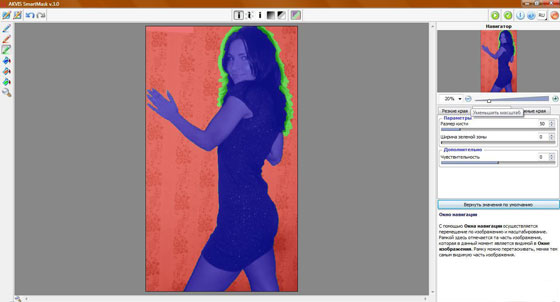
 . After processing two areas are created: a red area where the background has been deleted, and a blue area containing the girl. The two areas are divided by a green line.
-
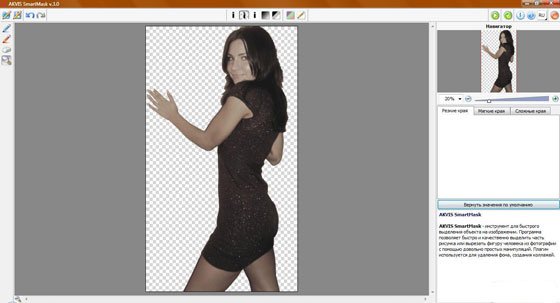
Step 5. To see the image on a transparent background, use
 and
and  to disable the background and strokes, successively.
-
Step 6. Since the hair does not look realistic, it should be processed further. Renable the background by pressing . Switch to Soft mode.
-
Step 7. Select the green brush
 , adjust its size, and draw over the area you wish to process.
-
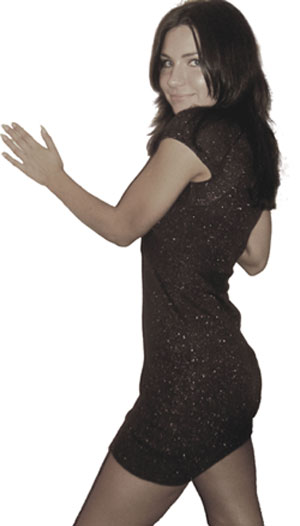
Step 8. Press to process the image.
The transparency of pixels under the green area has changed, returning some parts of the hair that were erased during processing in Sharp mode.
-
Step 9. If you are satisfied with the result, press
 to close the plug-in and return the image to the graphic's editor.
-
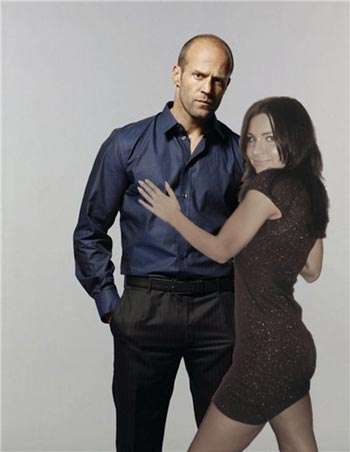
Step 10. Now you can add the girl to a different background. Open the photo of a famous actor.
This girl dreams to be closer to Jason Statham.
Copy the image of the girl. Go to the image of the actor and paste the fragment containing the girl over it. To make the girl match the proportions of the second photo, resize with the command Edit -> Free Transform.
-
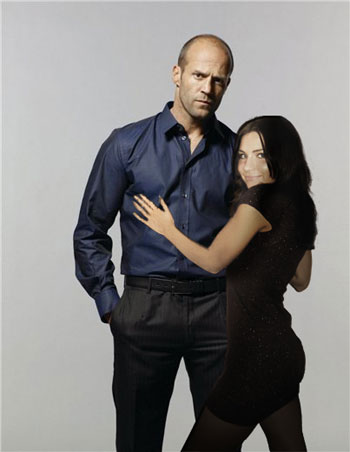
Step 11. Use the graphics editor to correct the girl to better match the color and lighting of the new background.
Now she can enlarge and print the image and put the poster on the wall next to her bed.
SmartMask AI v. 15.1 - Free 10-day Trial
