Graphic software for Windows Mac graphic software
Please enter your email to be kept posted on updates and discounts:
 
  
  Products     Download     Online Store     Tutorial     Support     Company
en  fr  de  es  pt  it  jp  ru    
 

Tutorial: AKVIS Enhancer

Smart Correction Mode in the plugin


Smart Correction Mode is used for tone correction of images, which is done by correcting the brightness of points in the light and dark areas. As a result the overall impression of the image improves considerably. Changes can be made to the entire image or to a part of the image depending on the colors selected for correction.
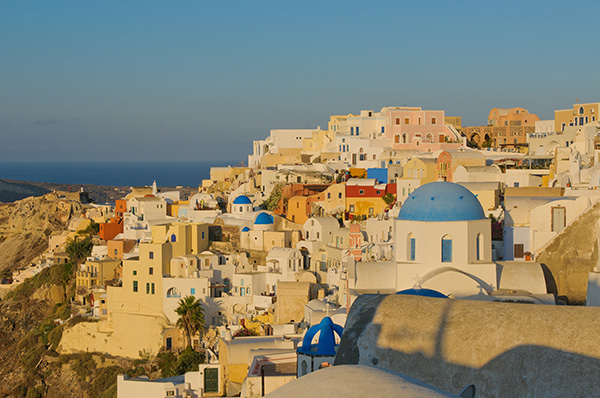
Source image Result
Source image Result

A comparison of Enhancer and Smart Correction Modes can be found here.


To process an image in this mode, follow these steps:

  • Step 1. Open the image in a photo editor.
    Source dark photo
  • Step 2. Call the AKVIS Enhancer plugin. Do this by selecting the command Filter - AKVIS - Enhancer in Adobe Photoshop; the menu item Effects - Plugins- AKVIS - Enhancer if you work with Paint Shop Pro Photo; or Effects - AKVIS - Enhancer if you use Corel PHOTO-PAINT.
  • Step 3. Choose Smart Correction Mode in the Settings panel.

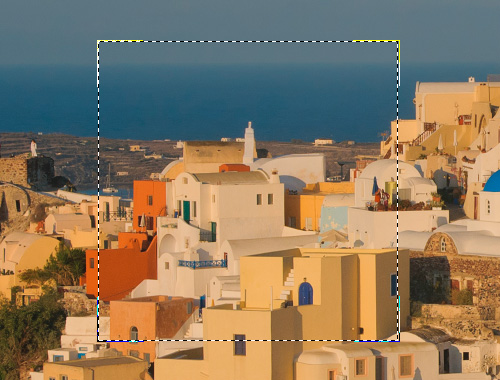
    The processed part of the image appears in the Preview Window on the After tab. This part is processed with the current settings.

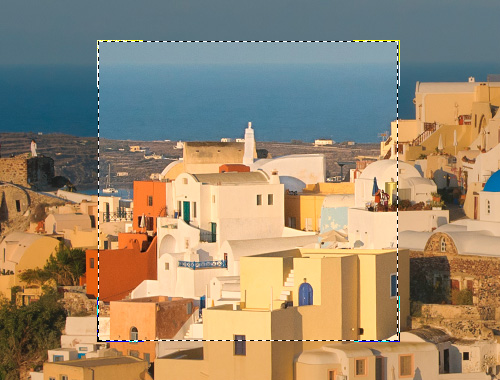
    Preview Window is a box with a boundary composed of a "running" dotted line, which shows the result of image processing based on changes made to the settings (by default in this mode all settings are set to 0, so at first the image in the preview window will be the raw (unprocessed) image). This square can be easily dragged and dropped to another part of the image (click and hold the left mouse button) or redrawn (double click) over any part of the image. In this way you can analyze other parts of the image.

    Preview Window in the Enhancer plugin

    By left-clicking on any point of the image outside of the Preview window, you can temporarily switch to the Before tab and compare the original image with the result in the preview window. You can switch between the tabs by pressing the Tab button.

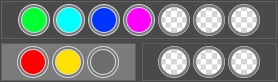
  • Step 4. Choose the colors to be corrected. To do this use the Color Set. The original set consists of seven colors. There are two additional sets below it, each consisting of three cells. You can move colors from the core set into these cells. By dragging colors you can have from one to three sets of colors. To switch from one color set to another click on it with the left mouse button. The chosen color set is highlighted in grey.

    Color Sets

    TheColor Indicator makes it easier to form a color set.

    Color Indicator

    From one to three color components are automatically chosen for each point on an image. When you move the cursor over the image, the Color Indicator displays the color components of the corresponding point. The Color Indicator helps select more precisely the color set for editing this area.

  • Step 5. Adjust parameter values. The parameters for each color set are regulated separately. The selected color set is highlighted in grey:

    Radius. This parameter accepts values from 0 to 60 and determines the size of the area to be analyzed. After analysis new color and brightness information is assigned to the point, which is used to assign the point to one of the color sets. Then the point is processed further.

    Shadows. The default value of this parameter is 0 and 60 and dark areas are not corrected. As the parameter's value is increased, dark areas become lighter, and details there become more discernible. Objects in dark silhouettes become more like they were when photographed.

    Highlights. By default the value of this parameter is 0 and light areas are not corrected. As the value of the parameter is increased, light areas become darker, contrast increases, and objects stand out more while the picture overall has more volume and appears more accurate.
    Color correction

    Note:    

    For colors that do not belong to the main set, the application of the parameters is mixed. For example, if the colors red and yellow are in different sets, then correction for the color orange will fall within both color sets.

  • Step 6. To process the image press the button.

    To interrupt the process, press the Esc key or click on the button Cancel right to the Progress bar.

    Processing the image
  • Step 7. If you like the new settings of the parameters, you can save them as a preset and use them later. To save the settings, enter a name for the preset into the Presets field and press the button Save.

    Next time you launch the program, these settings will be used by default. To return to the initial settings of the program, click on Reset.

    To process the image with a certain preset, select this preset from the drop-down list. The image will be automatically processed with the preset's settings.

    To delete a preset, select it from the list and click on the button Delete.

  • Step 8. When you are through with the image editing, press the button to apply the result.

 
How It Works How It Works
AKVIS Enhancer Plugin AKVIS Enhancer Plugin
   — Workspace — Workspace
   — Enhancer Mode — Enhancer Mode
   — Focus Mode — Focus Mode
   — Smart Correction Mode — Smart Correction Mode
   — Batch Processing — Batch Processing
AKVIS Enhancer Standalone  (+HDR) AKVIS Enhancer Standalone (+HDR)
   — Workspace — Workspace
   — Enhancer Mode — Enhancer Mode
   — Focus Mode — Focus Mode
   — Smart Correction Mode — Smart Correction Mode
   — HDR Mode (Series of Shots) — HDR Mode (Series of Shots)
   — What Does HDRI Mean? — What Does HDRI Mean?
   — Post Processing — Post Processing
Examples Examples
   — In the Street — In the Street
   — A Child in the Garden — A Child in the Garden
   — Highlands scenery (HDR)  — Highlands scenery (HDR)
   — See the lorry in detail — See the lorry in detail
   — Neuschwanstein Castle — Neuschwanstein Castle
   — Ancient Town — Ancient Town
   — Fun Slides in the Countryside (HDR) — Fun Slides in the Countryside (HDR)
   — Increase the Clearness of a Photo — Increase the Clearness of a Photo
   — Dark Picture of a Church — Dark Picture of a Church
   — Tennis-court — Tennis-court
   — Archery — Archery
   — Orange Tree — Orange Tree
   — Backlight Photo — Backlight Photo
   — Technical Illustration — Technical Illustration
   — Town at Night — Town at Night
   — Underexposed Photo — Underexposed Photo
   — A Kid with a Rattle — A Kid with a Rattle
   — African Kids — African Kids
   — A Siamese Cat — A Siamese Cat
   — Remove Smog from the Photo — Remove Smog from the Photo
   — Poet and Doves — Poet and Doves
   — A Black Cat in a Dark Room — A Black Cat in a Dark Room
   — Christmas Market — Christmas Market
   — Exposure Correction — Exposure Correction
   — Correction of a Dark Photo — Correction of a Dark Photo
   — Khan Palace Photo — Khan Palace Photo
   — Photo Correction: Lightening — Photo Correction: Lightening
   — Show Details in Shadows — Show Details in Shadows
   — An Old Brewery in a New Light (HDR) — An Old Brewery in a New Light (HDR)
   — The Golden Pavilion — The Golden Pavilion
   — An Ominous Way: Strengthen the Effect  — An Ominous Way: Strengthen the Effect


   Privacy Policy | Site Map | Search    
   Contact Us | Twitter | Facebook   
| English  |Français  |Deutsch  |Español  |Português  |Italiano  |日本語  |Pусский  | © 2004-2010 AKVIS.com. All rights reserved.