Teapots for Every Taste
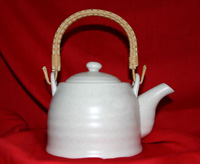
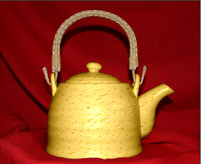
One and the same teapot can look absolutely different if you change its material (color and texture) with AKVIS Decorator.
 |
 |
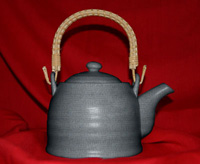 |
| Original image | Results | |
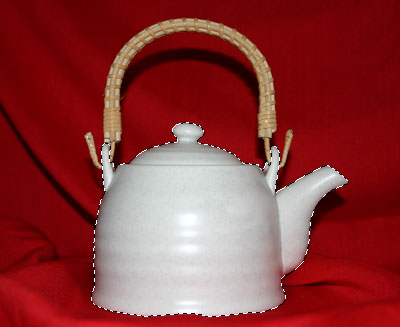
- Step 1. First of all we take a photo of a teapot. It is better to use a teapot without a pattern.
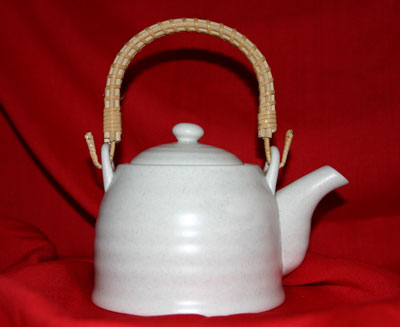
- Step 2. Open the photo in any photo editor compatible with AKVIS Decorator.
- Step 3. Select the teapot's body (without the handle) using any selection tool. The main thing is that it was comfortable for you to use this selection tool to draw a precise outline.
You can make/edit the selection in AKVIS Decorator.
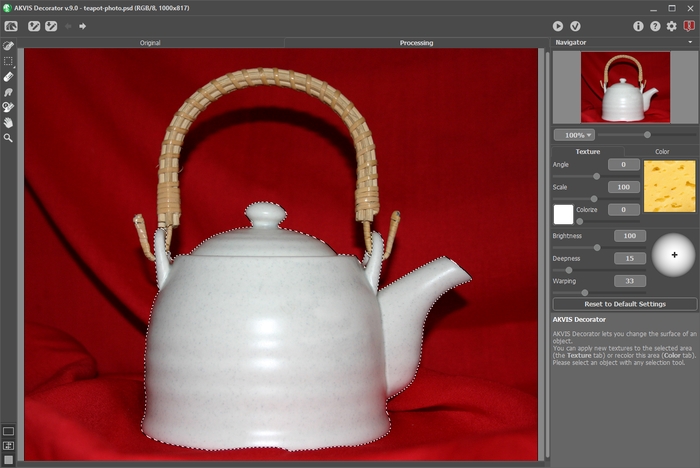
- Step 4. Call the plug-in AKVIS Decorator and select a suitable texture from the Texture Library. We've chosen a texture with cheese.
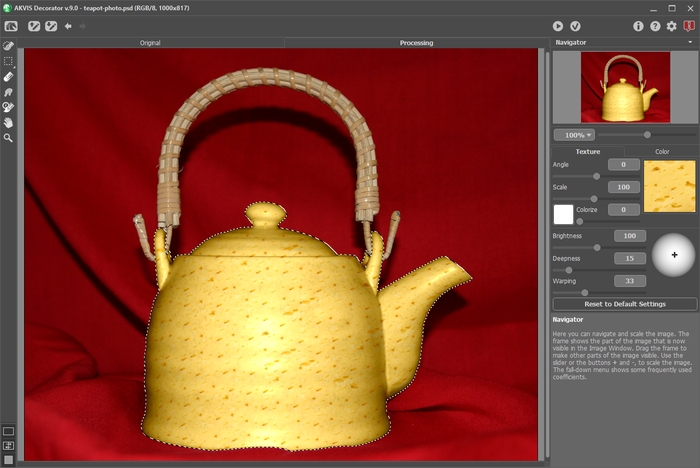
- Step 5. Press the button
 .
.
In a few seconds we see a "cheese" teapot in the Processing tab and imagination carries us away to a cosy chalet somewhere in the Alps where one can taste a cheese fondu and enjoy fragrant tea.
- Step 6. We can also choose a different texture, for example, dark-gray paper with a crimped pattern. Press the button .
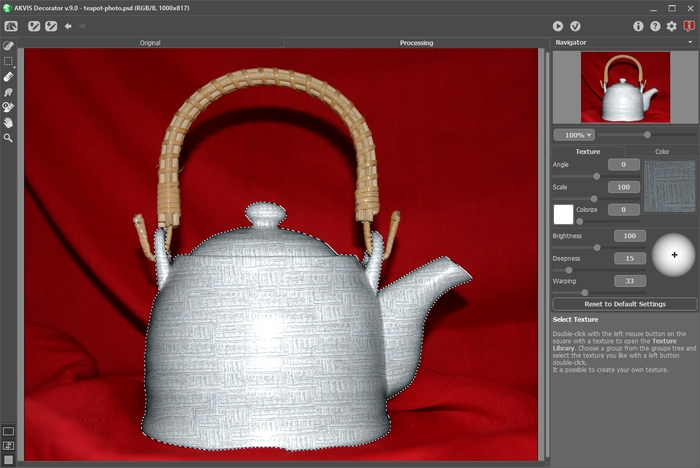
- Step 7. The original color of the teapot is light, therefore even if we apply a dark texture we get only a light version of it. To correct it we should reduce the value of the parameter Brightness.
Every time you adjust the "overlay" parameters, you should press the button
to apply the changes and see the result in the Processing tab of the Image Window.
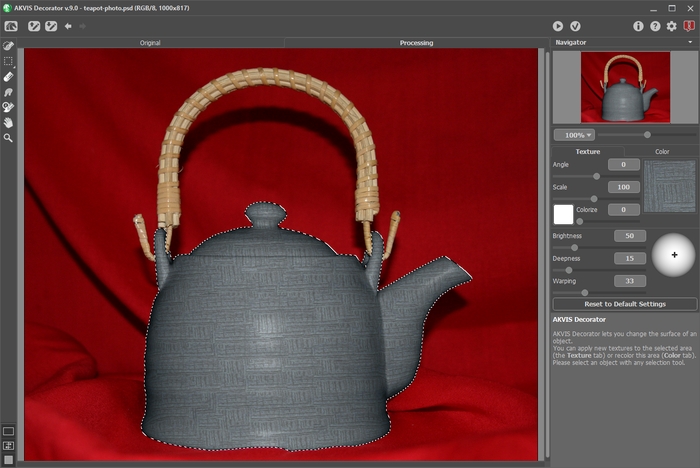
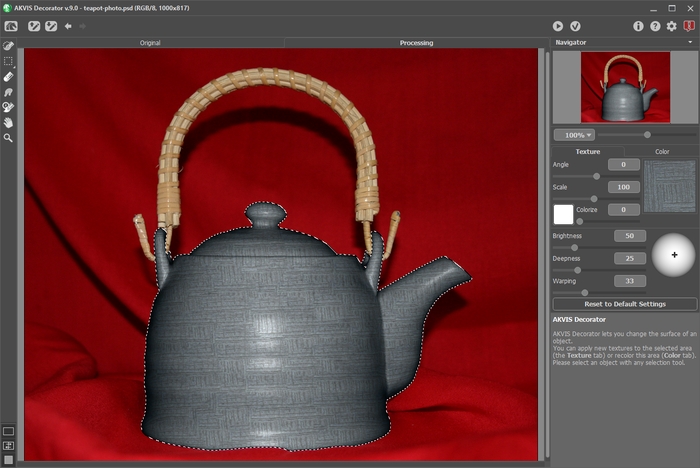
- Step 8. To make the new texture look more natural, we can increase the value of the parameter Deepness. Thus, the distribution of light and shade becomes more pronounced - the dark areas get darker, the light areas get lighter.
The photo has been taken with the built-in flash gun, so the light falls directly on the subject. We do not need to change the position of the light source on the ball.
- Step 9. Apply the result by pressing the button
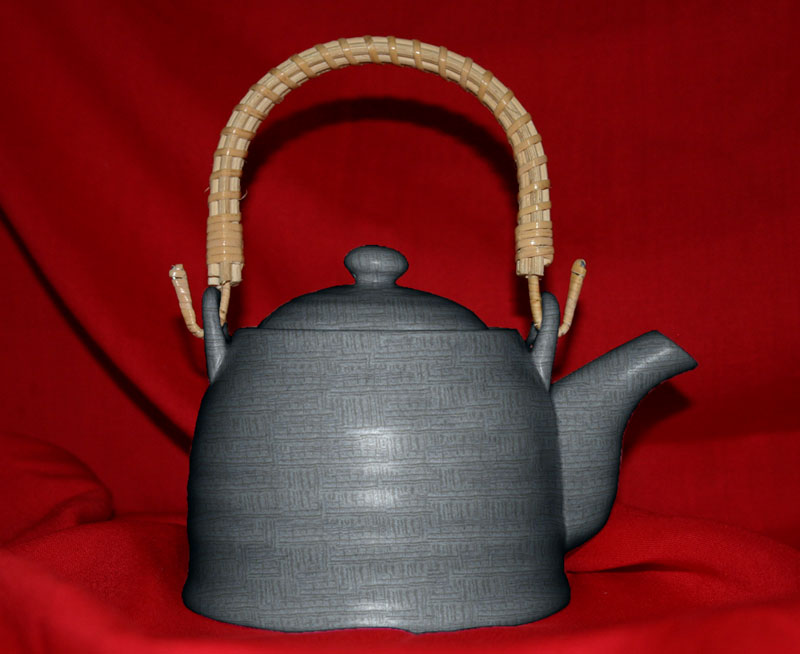
 . The simple pattern and muted color remind one of the formal oriental tea ceremony.
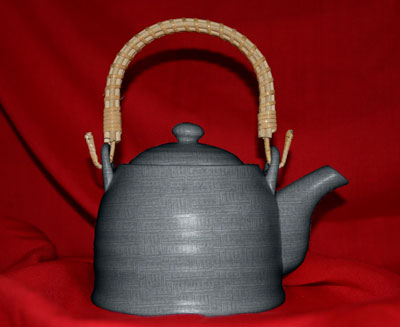
Click the pictire to see this teapot for the tea ceremony in a larger window
Note: If the selection was not precise or the object's borders were not sharp enough to draw a precise outline, you can touch-up the borders with a blur tool of a small size after using AKVIS Decorator. For example, you can apply Blur tool  with Radius = 1.5.
Decorator v. 9.0 - Free 10-day Trial

