Graphic plugins for Windows Mac graphic plugins  
Please enter your email to be kept posted on updates and discounts:
 
  
  Products     Download     Online Store     Tutorial     Support     About Company
en  fr  de  es  pt  it  jp  ru    
 

Tutorial: AKVIS Decorator

How it works


Watch a flash movie demonstrating the technique of texture application with AKVIS Decorator.
Click here! (flash-movie, 3.78 Mb)


To recolor or resurface an object on a photo with the plug-in AKVIS Decorator follow the instruction below:

  • Step 1. Open an image in your photo editor.
    Photo of a car
  • Step 2. Select an object to apply a texture on. Use any selection tool of your photo editor. The selection must be precise.
    Selection
  • Step 3. Call the plug-in with the command AKVIS -> Decorator from the menu Filters.
    For this purpose use the command Filter -> AKVIS -> Decorator in Adobe Photoshop; the menu item Effects -> Plugins -> AKVIS -> Decorator if you work with Paint Shop Pro; or Effects -> AKVIS -> Decorator if you use Corel PHOTO-PAINT.
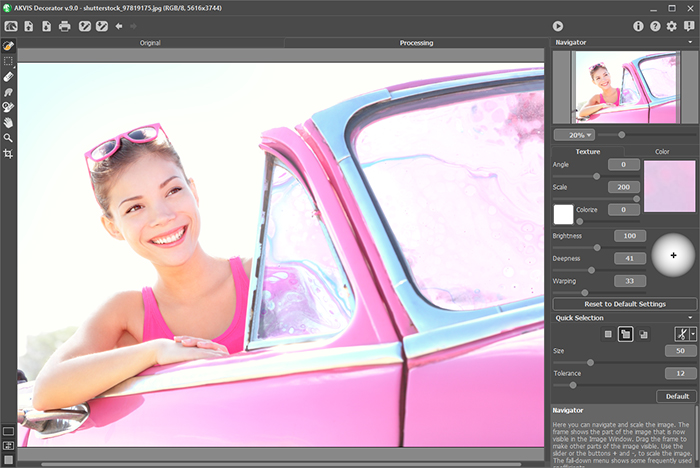
    AKVIS Decorator
  • Step 4. You can apply a new texture to the object or recolor it. Therefore in the following step you should select a texture or a color.


    Select a texture

    A texture is chosen from the Texture Library. To open the Texture Library you should double-click with the left mouse button on the square with a texture.

    Texture tab

    The built-in Texture Library has a great variety of textures. All textures are divided into groups: stone, fabric, flowers, etc. To select a pattern you should first select a group from the group tree and then double-click the required texture with the left mouse button.

    You can also use your own textures. For this purpose you should adjust their size (100 x 100 px) and save it as a jpg file with High or Maximum quality into any folder on your computer.

    To load this texture into AKVIS Decorator, you should open the Texture Library, press the button Open and select your texture in the dialog box Open.

    To come back to the Texture Library without selecting a texture, just press the button Close.

    Texture Library

    The program allows adjusting Angle, Scale and Color of the selected texture.

    • Angle. The parameter sets the rotation angle of the texture. The values lie between 0 and 360 degrees. The texture rotates counterclockwise.
      Angle = 0 Angle = 45 Angle = 90
      Angle = 0 Angle = 45 Angle = 90
    • Scale. The parameter sets the scale of the pattern. By default the scale is 100%. If you reduce the value of the parameter, the pattern size on the texture gets smaller, if you increase the value of the parameter, the pattern takes more place on the texture.
      Scale = 50 Scale = 100 Scale = 155
      Scale = 50 Scale = 100 Scale = 155
    • Color. This parameter allows changing the color of the chosen texture. Only its color changes; its brightness and saturation stay the same.
      Original 
color Blue color 
applied Rosy color 
applied
      Original
      color
      Blue color
      applied
      Rosy color
      applied

      To change the color of a texture you should first activate the check-box near the color plate, then click on the plate and choose a color from the Standard Color Selection Dialog.

      Texture color

    If you change the texture's parameters, you should press the button Generate to apply the changes to the texture.


    Select a color

    If you do not want to apply a new texture to the object and your task is only to change its color, you should switch to the Color tab in the Settings panel and choose a color.

    Color tab

    You can select a color from the Color Palette, from the Standard Color Selection Dialog or from the original image.

    To select a color from the Color Palette just left-click on any color of the palette. The selected color will be shown in the color rectangular on the right.

    The Standard Color Selection Dialog opens as you double-click the color rectangular on the right of the palette.

    Standard Color Selection Dialog

    Besides, it is possible to choose a color from the original image. For this purpose left-click on any point of the original image keeping the Ctrl key pressed (Command on Macintosh).

    Over the color rectangular on the Color tab there is a mini-palette, where you can keep custom colors. To save a color in the mini-palette, just drag this color from the color rectangular on any cell of the palette (even if the cell is not free). To select a color from the mini-palette, just left-click it with the mouse. To remove a color, right-click it.

  • Step 5. Press the button Apply texture to apply a texture or a color to the selected object. The result will be shown in the After tab.
    The texture is applied to the selection
  • Step 6. Adjust the parameters that influence the way the texture is applied to the object.
    • Brightness. This parameter allows changing the brightness of the original image. You may need it if you want to apply a light texture (color) to a dark object, or a dark texture (color) to a light object. In the first case, you should increase the value of the parameter Brightness, in the second case you should reduce it. At 100% the resulting brightness of the pixels is determined by the brightness of the pixels of the original image.
      Brightness = 60
      Brightness = 60
      Brightness = 100
      Brightness = 100
      Brightness = 140
      Brightness = 140
    • Deepness. The parameter influences the amount of light and shade on an image. At 0, shades, folds and gradients are ignored; as a result the object looks flat. The higher the parameter, the more pronounced are highlights and shades, the image looks deeper. However, if the value of the parameter is too high, some parts can become overexposed or underexposed.
      Deepness = 5
      Deepness = 5
      Deepness = 40
      Deepness = 40
    • Warping. The parameter sets the level of the texture warping. At 0, the texture is not warped at all, the higher the parameter, the more deformed is the texture.
      Warping = 5
      Warping = 5
      Warping = 80
      Warping = 80
    • Light Source Use the dagger on the ball to set the probable light source when the photo is taken. The position of the light source influences the texture wrapping.
      Light Source

    The changes made in this settings area apply when you press the button Apply the changes. The result is shown in the Image Window.

  • Step 7. If you are not satisfied with the result, adjust the parameters further and press the button Apply the texture again.
  • Step 8. When ready, press the button Apply the result to apply the result to the picture and close the plug-in.
    A car with a new surface
 
How it works How it works
Color and texture of clothes Color and texture of clothes
Interior Design Interior Design
Teapots for every taste Teapots for every taste
Stone Bas-Relief in Cambodia Stone Bas-Relief in Cambodia
Aliens Are Coming Aliens Are Coming
Fashion Show Fashion Show
Toys on the Grass Toys on the Grass
The Snow Queen The Snow Queen
Patchwork Patchwork


   Privacy Policy | Site Map | Search | English  | Français  | Deutsch  | Español  | Português  | Italiano  | 日本語  | Pусский  | © 2004-2008, AKVIS LLC. All rights reserved.