Das neue schöne Bild: Tattooentfernung
Der Autor des Tutorials ist Tammy Russotto.
Tammy Russotto schreibt, dass AKVIS Programme die Bearbeitung wesentlich schneller und einfacher machen. Sie führen spielerisch zum Erfolg. Ein bisschen Praxis bringt gute Ergebnisse: professionelle Bildbearbeitung wird im Handumdrehen ermöglicht.
In diesem Beispiel wollte der Autor ein Porträt erstellen, das sie ihren Verwandten senden könnte. So beschloss sie ein Tattoo entfernen. Auf dem Foto sehen Sie die 25-järige Tochter von Tammy namens Tiffany.
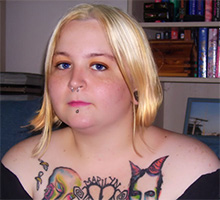
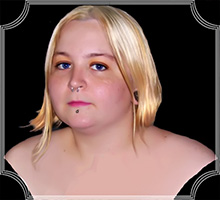
Bitte befolgen Sie die Schritte:
- Schritt 1. Öffnen Sie das Bild in Ihrem Bildbearbeitungsprogramm mit dem Befehl Datei -> Öffnen.

Originalfoto von Tochter - Schritt 2. Mit dem Rechteckauswahl
 wählen Sie den Bereich, der retuschiert werden soll.
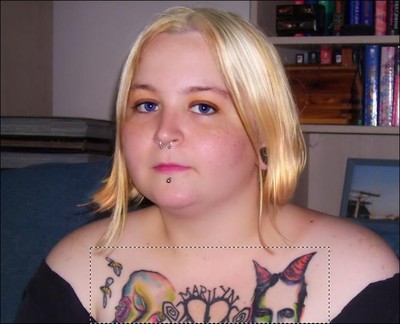
Tattoo auswählen - Schritt 3. Dann rufen Sir das Plugin AKVIS Retoucher auf: Effekte -> AKVIS -> Retoucher.
Der ausgewählte Bereich wird mit der transparenten roten Farbe markiert.
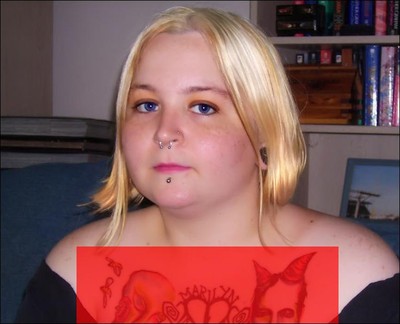
Der ausgewählte Bereich wird rot markiert - Schritt 4. Klicken Sie auf
 , um die Bearbeitung zu starten. Sie werden beobachten, wie der ausgewählte Bereich entfernt werden wird.
- Schritt 5. Danach klicken Sie auf
 , um die Änderungen anzunehmen und ins Bildbearbeitungsprogramm zurückzukehren. Wenn es andere Bereiche gibt, die retuschiert werden sollen, wiederholen Sie dieselbe Prozedur.
- Schritt 6. Jetzt rufen Sie das Plugin AKVIS SmartMask mit dem Befehl Effekte -> AKVIS -> SmartMask.
Aktivieren Sie den Auto-Modus. Mit dem Erhalten-Stift
 markieren Sie den Bereich, der erhalten werden muss. Dann benutzen Sie den Entfernen-Stift
  , um die Bereiche zu markieren, die entfernt werden müssen.
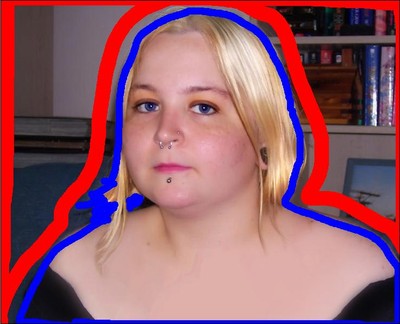
Kontur zeichnenKlicken Sie auf die Schaltfläche
, um das Bild zu bearbeiten.
- Schritt 7. Wählen Sie den Übergangsgrenze-Stift
 und erhöhen seine Größe. Umreißen Sie die Silhouettenkanten. Dann klicken Sie auf , um die Bearbeitung wieder zu starten.
- Schritt 8. Klicken Sie auf die Schaltfläche
 , um den Farbauswahldialog aufzurufen und eine neue Hintergrundfarbe zu wählen.
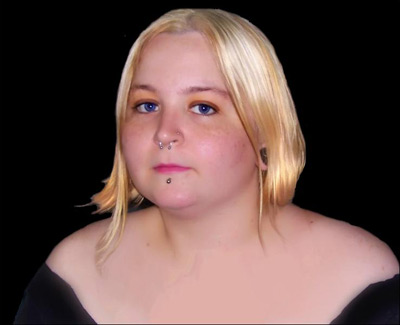
Fragment auf neuem HintergrundWenn sie die Hintergrundfarbe nicht ändern wollen oder damit schon fertig sind, klicken Sie auf
, um das Ergebnis zu speichern und in das Bildbearbeitungsprogramm zurückzukehren.
- Schritt 9. Rufen Sie das Plugin AKVIS ArtSuite auf, um einen Rahmen hinzuzufügen: Effekte -> AKVIS -> ArtSuite.
Für dieses Tutorial wurde von dem Autor den Künstlerischen Rahmen in Weiß ausgewählt. Der Rahmen wurde an die Bildgröße angepasst.
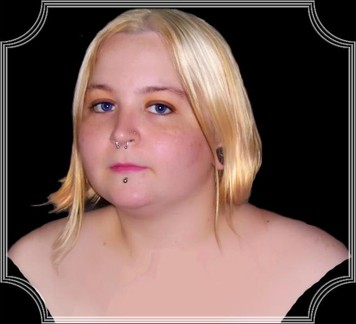
Rahmen auswählen - Schritt 10. Nachdem Sie das gewünschte Ergebnis erstellt haben, klicken Sie auf , um die Änderungen anzunehmen und ins Bildbearbeitungsprogramm zurückzukehren. Wenn es scheint, dass das Bild eine Nachbearbeitung braucht, setzen Sie die Bearbeitung fort.
Retoucher v. 12.2 - 10-Tage-Testversion
