Sepia-Effekt
Der Autor des Tutorials ist Jean-Claude Grégoire.
Dieses Bespiel wurde im Bildbearbeitungsprogramm Adobe Photoshop mit dem Plugin AKVIS Coloriage erstellt.
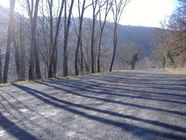
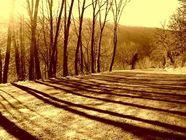
In diesem Tutorial wird der Umwandlungsprozess eines Bildes von Farbe in Sepia gezeigt. Wenn Sie ein schwarz-weißes Bild in Sepia färben möchten, beginnen Sie mit dem Schritt 4.
Es gibt ein paar Methoden, die das Farbbild in Schwarz-Weiß umwandeln lassen:
- Menübefehl: Bild > Modus > Graustufen;
- Menübefehl: Bild > Korrekturen > Farbton/Sättigung;
- Menübefehl: Ebene > Neue Einstellungsebene > Farbton/Sättigung.
Diese Methoden sind sehr einfach, lassen aber keine Einstellungen während der Bearbeitung anpassen.
Im Tutorial "Selektive Entfärbung" wurde es schon gezeigt, auf welcher Weise man bestimmte Bereiche eines Fotos entfärben kann, während andere Bereiche farbig bleiben. Wenn Sie kein Farberhaltungsstift benutzen, wird das ganze Bild zu einem schwarz-weißen Bild geändert. Das gleiche Ergebnis wird durch den Aufruf des Menübefehls Bild > Modus > Graustufen erzielt.
Bitte beachten Sie, dass die Verwendung des Menübefehls Bild > Modus > Graustufen und des Menübefehls Bild > Korrekturen > Farbton/Sättigung unterschiedliche Effekte erzeugt.
Die weitere Methode besteht in Verwendung von Kanälen. Sie ist aber ziemlich kompliziert und erlaubt es nicht, Kanalinhalte anzupassen.
Jean-Claude Grégoire teilt uns seine eigene Methode mit, die verschiedene Einstellungen ändern lässt.
-
Schritt 1. Unten wird das Ausgangsfoto angezeigt. Öffnen Sie es in Adobe Photoshop.
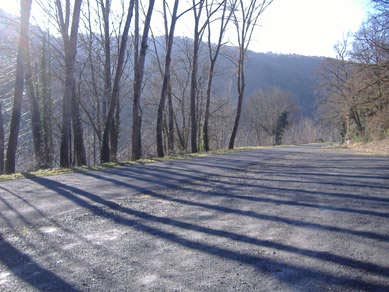
FarbfotoZuerst sehen Sie alle Kanäle in RGB-, Lab- und CMYK-Modi durch:
- Rot
- Grün
- Blau
- Helligkeit (im Lab-Farbe-Modus)
- Cyan
- Magenta
- Gelb
- Schwarz
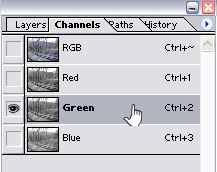
Kanalpalette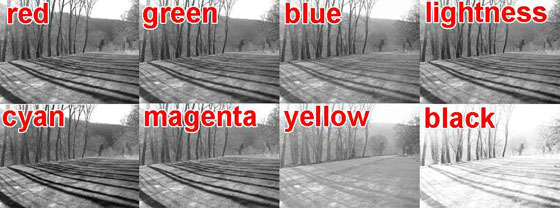
KanäleEinige Details sind in dem Rot-Kanal besser sichtbar, andere Details - in dem Cyan-Kanal usw. Um die optimale Variante auszuwählen, muss man die Kanäle vermischen.
-
Schritt 2. Die einfachste Art, die Kanäle zu vermischen, ist der Aufruf des Befehls Ebene > Neue Einstellungsebene > Kanalmixer.
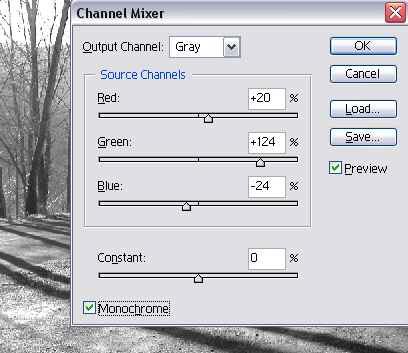
KanalmixerAktivieren Sie das Kästchen Monochrom und verschieben Sie die Schieberegler, bis das beste Ergebnis erreicht wird. In diesem Fall wurden die Kanäle im RGB-Modus wie folgt vermischt:
- Rot: +20
- Grün: +124
- Blau: -24
Sie können auch den CMYK-Modus aktivieren, in dem 4 Kanäle vermischt werden.
- Schritt 3. Verbinden Sie alle Ebenen und aktivieren Sie den Graustufen-Modus (Bild -> Modus -> Graustufen), um das Schwarz-Weiß-Bild zu erhalten.
-
Schritt 4. Machen Sie das Bild kontrastreicher, damit das Sepia-Bild ausdrucksvoller wirkt. Wählen Sie dazu den Befehl Ebene > Neue Einstellungsebene > Gradationskurven aus dem Hauptmenü.
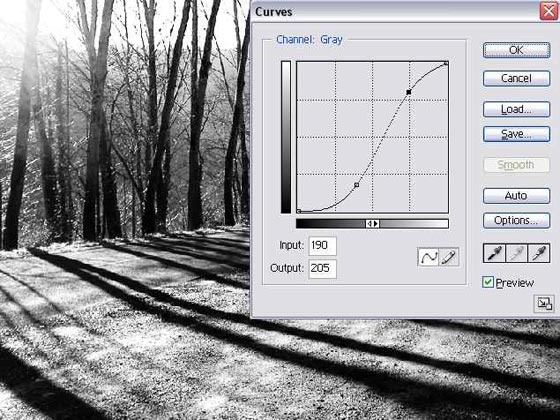 Helligkeitsgrad anpassen
Benutzen Sie folgende Einstellungswerte zur Erhöhung des Helligkeitsgrades (für jedes Bild muss man seine eigene Einstellungeswerte anpassen):
- Eingabe: 0 - Ausgabe: 0
- Eingabe: 100 - Ausgabe: 45
- Eingabe: 190 - Ausgabe: 205
- Eingabe: 255 - Ausgabe: 255
- Schritt 5. Verbinden Sie die Ebenen und wandeln Sie das Bild wieder in den RGB-Modus zurück.
- Schritt 6. Es ist Zeit, das Plugin AKVIS Coloriage aufzurufen.
- Schritt 7. Im Farbauswahldialog wählen Sie die Sepiafarbe:
- Rot: 179,
- Grün: 126,
- Blau: 40,
die folgenden Einstellungswerten entspricht:
- Farbton: 37
- Sättigung: 198
- Helligkeit: 179
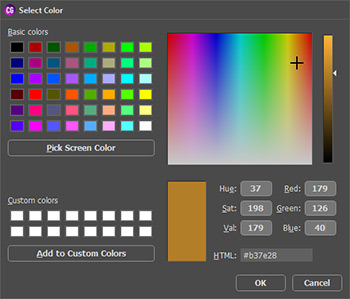
FarbauswahldialogWenn Sie einen anderen Farbton bekommen wollen, ändern Sie den Wert des Parameters Farbton. Mit zunehmendem Wert wird die Farbe gelber (wählen Sie ca. 50°). Je kleiner der Wert, desto röter ist die Farbe (wählen Sie ca. 25°).
- Schritt 8. Wählen Sie das Stift-Werkzeug
 und ziehen Sie beliebige Markierungslinien auf dem Bild. Das Ergebnis ist von der Forme und Anzahl der Linien unabhängig.
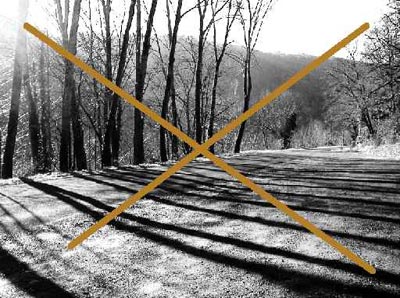
Markierungslinien ziehen- Schritt 9. Klicken Sie auf
 . Das Sepia-Bild wird im Ergebnis-Register angezeigt.
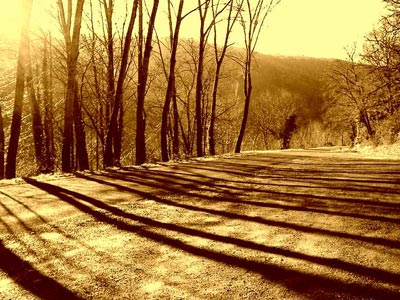
Sepia-Bild- Schritt 10. Klicken Sie auf
 , um die Änderungen anzunehmen und in Photoshop zurückzukehren.
- Schritt 11. In Photoshop ist es auch möglich, den Farbton anhand neuer Einstellungsebene Farbton/Sättigung zu ändern. Dazu passen Sie den Parameterwert Farbton. Mit zunehmendem Wert (z.B. +10) wird das Bild gelber und mit abnehmendem Wert (z.B. -10) wird das Bild roter.
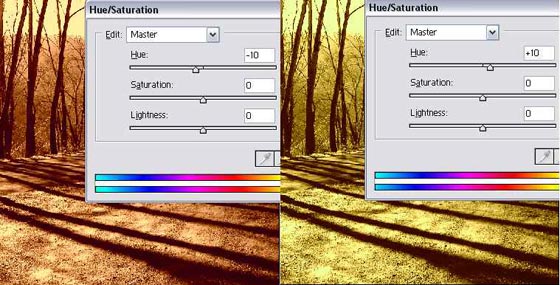
Farbton anpassenWichtige Tipps- AKVIS Coloriage auf Farbbilder anwenden.
Wenn Sie die Bearbeitung des Farbbildes mit dem Schritt 6 beginnen, kann das Ergebnis kontrastarm und ausdruckslos sein.
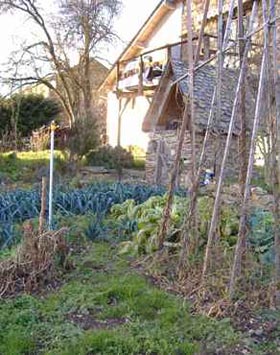
Farbfoto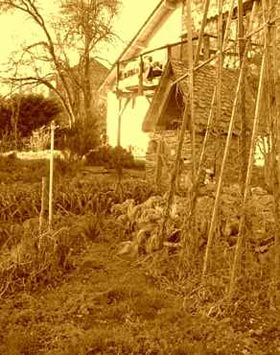
kontrastarmes Sepia-FotoUm einen guten Sepia-Effekt auf einem Farbfoto zu erreichen, muss man den Kontrast dieses Fotos drastisch erhöhen, bis es sogar psychedelisch aussieht. Dabei ist es ziemlich schwer, richtig zu bewerten, ob dieser Kontrastgrad genügend ist.
Aber in einigen Fällen kann auch diese Methode leistungsfähig sein:
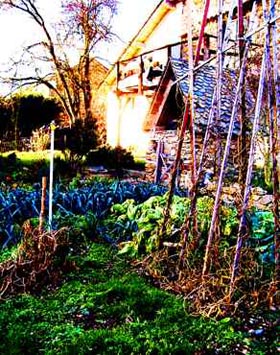
Kontrast erhöhen,
um Sepia-Effekt zu erstellen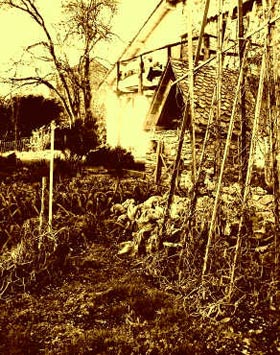
Sepia-Effekt - Reihenfolge der Schritte 4 und 6-10 umkehren
Wenn Sie zuerst die Schritte 6-10 durchführen und nur dann den Helligkeitsgrad mit dem Befehl Ebene > Neue Einstellungsebene > Gradationskurven anpassen (Schritt 4), wird das Ergebnis kontrastreicher.
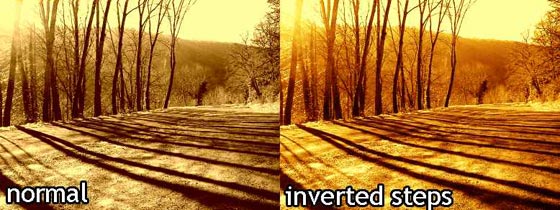
invertierte Reihenfolge der Schritte
Coloriage AI v. 15.7 - 10-Tage-Testversion
